

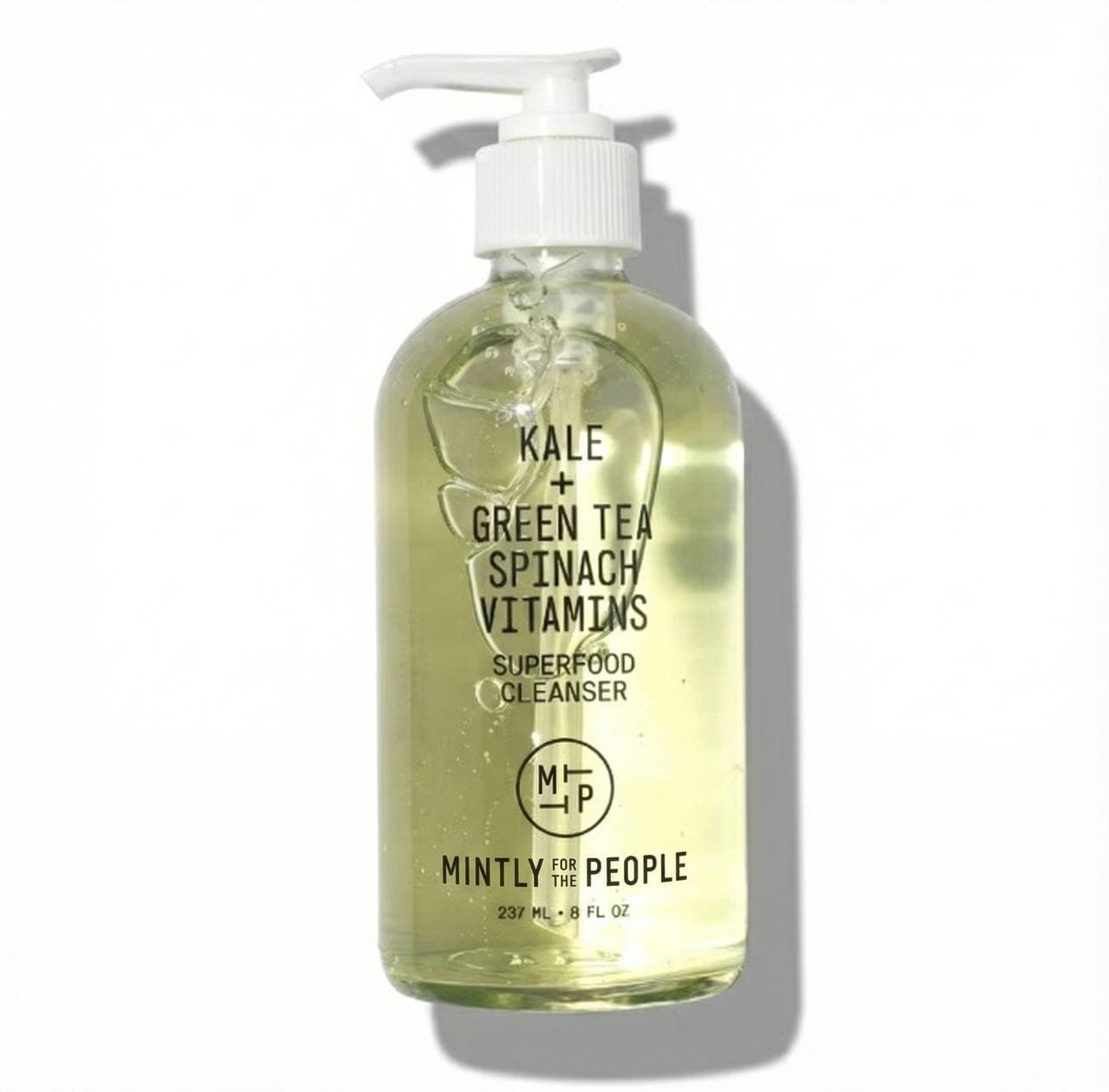
No Fake Packaging: How to Keep Product Text Sharp in AI Ads
Picture this: It's late, and you’re trying to piece together an ad for your latest product launch. You’ve got a dozen creative tools open, each promising to deliver the perfect image. Some nail the colors or the lighting.
But when it comes to the product text on the packaging, it turns into a blurry, unreadable mess. The label looks fake, like a bad Photoshop job, and you know that kills trust and sales. You spend hours fixing it — fiddling with fonts, repositioning text, tweaking backgrounds — time you don’t have, time better spent on strategy or growth.
This is the reality for many founders and marketers who are drowning in subscriptions and still can’t get crisp product text in AI-generated ads. The problem? Most AI tools focus on flashy images but botch the details that matter most: the product’s label, claims, and logos.
If your customers can’t read these, they won’t buy. You need a process that guarantees sharp, authentic text every time. No more fake packaging that looks cheap or confusing.
What you want is precision, speed, and a “Senior Designer in a Box” that understands your brand instantly. You want to cut through the tool chaos and copy-paste trauma. This blog will walk you through exactly how to keep product text sharp in AI ads — from setting clear text goals to picking the right AI models, enhancing visibility, and making images OCR-friendly for marketplaces like Amazon and Shopify.
Plus, you’ll see why consolidating your creative stack with a platform like Mintly is the fastest way to get real-looking ecommerce product images that convert.
Why Sharp Product Text in Ecommerce Ads Matters
When you look at ecommerce product image generators, one thing stands out: blurry or distorted product text ruins trust. Whether you sell on Amazon, Shopify, or your own site, your product photos need to clearly show labels, claims, and brand logos. If the text is fuzzy or fake-looking, customers hesitate.
They can’t read what they’re buying, leading to lost sales and more returns. Amazon and Shopify both require product images with white or neutral backgrounds and sharp typography. This isn’t just about looking good — it’s about compliance and helping their algorithms index your products properly.
Clear text makes your product easier to find and more trustworthy. Sharp product text also preserves your brand’s identity. When your packaging looks professional and real, customers feel confident.
They won’t second-guess if the product matches the description or worry about quality. This reduces returns and boosts your marketplace performance. Bottom line: blurry, fake packaging kills credibility.
Crisp, authentic product text in your ads immediately signals professionalism and builds trust. That’s why it’s worth investing in a process and tools that get this right every time.
What You’ll Need to Keep Product Text Crisp
To keep product text crisp in your AI ads, you need the right setup. First, a product image generator that either preserves your original text or lets you place text exactly where it belongs. Manual tools like Adobe Photoshop can do this but require time and skill — something you don’t have.
Pure prompt-based AI generators are easy but often hallucinate or distort text, making labels unreadable. Specialized AI platforms like Mintly stand out by preserving logos and text fidelity fully. Mintly’s one-stop “Creative OS” cuts through the mess of multiple apps and endless prompt tweaks, letting you go from product catalog to attention-grabbing ad creatives in minutes.
You’ll also need good original product images — high resolution with white or neutral backgrounds work best. Clear text specs are essential too: know your fonts, colors, sizes, and where text should appear. An AI upscaler is another must-have.
It helps keep resolution sharp, especially when images get resized for ads or print. Think of this as your toolkit: strong base images, precise text details, AI generation that respects those details, and smart upscaling. Mintly bundles all this together, so you don’t have to juggle subscriptions or learn prompt engineering.
Instead, you get a streamlined process that just works.
Step 1: Define Text Clarity Goals and Prompt Details
Start by writing down exactly what text should appear on your product images. This includes your brand name, product claims, callouts, and any regulatory info. Don’t just say "add logo" or "text on bottle" — be specific.
Specify font type (sans-serif is best for clarity), size, weight, color contrast, and precise placement. Why bother? Vague prompts cause AI to guess fonts or text shapes, which leads to blurry or fake-looking labels.
You want the AI to replicate real packaging, with consistent stroke widths, clear inner letter spaces (called letter counters), and proper spacing that mimics printed labels. If you can, use metrics like ABHINAW — a method for automatic evaluation of typography in AI images — to check your text accuracy quantitatively Source. This helps catch subtle distortions before you waste time on bad generations.
Clear, layered prompt details reduce guesswork and speed up the process. The easier it's for AI to understand your text goals, the fewer iterations you’ll need. Mintly’s AdGPT feature helps create these detailed prompts with one click, so you don’t have to be a prompt engineer.
Step 2: Select and Generate Images with Models Suited for Crisp Text
Not all AI image models handle text equally. Standard diffusion models like Stable Diffusion often blur or morph text shapes, especially on complex packaging. To keep product text sharp, choose AI generation models trained or tuned specifically for precise typography, like FLUX.1.1 [ultra] or GPT Image HD.
Upload your high-res product images along with your detailed text prompts to these models. Generate multiple versions quickly, then compare and refine. This cuts down on wasted credits and time.
Avoid relying solely on generic AI generators without specifying text clarity needs — you’ll end up with distorted labels and ghosting effects. Mintly uses these advanced models behind the scenes and combines them with smart workflows. This means you get crisp, authentic product photos without juggling multiple tools or learning complex prompting.
Step 3: improve Text Visibility Using Design Techniques
Even when AI nails the text, it can blend into busy or textured backgrounds, hurting readability. To fix this, use subtle design overlays that boost contrast without looking fake. Try 20–40% transparent shapes behind text, gradient masking for smooth contrast transitions, or creative text frames like ribbons or circles.
These help separate text from complex backgrounds and guide the eye naturally. use existing white or negative space on product backgrounds. Avoid overcrowding text areas and align text with natural scene elements like labels or signs for an authentic look.
Don’t place text directly on complicated textures or low-contrast spots without overlays — it kills legibility and the professional vibe. Mintly’s AI Photo Editor lets you do these tweaks quickly, so you don’t need Photoshop skills or extra apps.
Step 4: Upscale or Refine Images to Preserve Sharp Text
Once you have your AI-generated image, upscale it to keep text crisp, especially if your text is small or you’ll show images on desktop or print. Use AI upscalers like LetsEnhance Prime. These tools boost resolution while keeping stroke widths, letter counters, and edges sharp.
Pick an output scale based on your use case: 2× to 4× for web, higher for print. After upscaling, inspect the image for pixel artifacts or inconsistent strokes. If artifacts appear, scale back to preserve quality.
Skipping this step or using generic resizing blurs letter edges, undoing all your hard work. Mintly includes integrated upscaling options, so you don’t have to jump between apps or waste time learning new software.
Step 5: Ensure OCR‑Readable Packaging Design for Maximum Authenticity
Design your packaging images to be OCR-friendly. Use high contrast text on solid backgrounds, simple sans-serif fonts, and a clear typography hierarchy that prioritizes important text. Why?
Marketplaces like Amazon and Shopify use AI to read product text for indexing and quality control. Blurry or overly stylized text gets flagged or ignored, hurting your search visibility and sales. Avoid decorative or script fonts on product labels.
Stick to clean, readable layouts. Test your images with OCR tools or mockups before publishing to catch issues. This approach balances aesthetics with function, ensuring your images pass marketplace checks and look professional.
According to a Search Engine Land report, products with machine-readable packaging perform better in search rankings and customer trust. Mintly’s design presets help you hit these standards without extra hassle.
Common Mistakes to Avoid When Keeping Product Text Sharp in AI Ads
Here’s what trips up most brands trying to keep product text sharp:
-
Overloading images with too much text or tiny fonts that won’t read on small phone screens. - Using vague prompts like "add logo" instead of detailed text specs — leads to ghosting, swapped letters, or distorted labels. - Chopping and changing between multiple tools, which causes loss of text fidelity during format conversions.
-
Skipping upscaling or relying on generic resizing — this blurs edges and kills clarity. - Using decorative fonts or placing text on busy backgrounds without contrast overlays, making text unreadable. - Ignoring OCR-readiness checks, causing marketplace rejections or poor search rankings.
Avoid these mistakes by standardizing your text specs, using AI tools designed for product integrity, and testing images before launch. Mintly’s all-in-one platform helps you skip these pitfalls by combining prompt generation, image creation, editing, and upscaling in one place.
Next Steps and Best Practices – Consolidate Your Creative Stack for Sharp Text Every Time
Start by standardizing your product text specs—fonts, colors, sizes, and placement—and document them clearly. This makes every new image consistent and easy to generate. Next, pick an ecommerce product image generator or Creative OS like Mintly that preserves all product text and logos natively.
This cuts tool sprawl and messy workflows. Use design layering techniques and AI upscaling early in your process to keep text clear across all ad formats—whether white backgrounds, lifestyle shots, or 360 views. Always test images for OCR friendliness and marketplace compliance before scaling campaigns.
This ensures your ads convert consistently and your listings stay live. By consolidating your creative stack into a single, self-service platform that just works, you reclaim hours and dollars lost to juggling tools and fixing blurry text. Mintly’s 1-click actions, prompt generator, and proven ad cloning make it the fastest path to professional ecommerce ads that convert.
FAQ
Q: How to create product images for ecommerce that preserve text clarity?
A: Define your exact text content and style details upfront. Use AI generators tailored for sharp typography like Mintly, apply overlays for contrast, then upscale images carefully to keep resolution and legibility.
Q: What background works best for product photos with text?
A: Solid, light-colored or white backgrounds offer the highest contrast for OCR-friendly product text. Marketplaces like Amazon and Shopify prefer these for better indexing and trust.
Q: How to improve images for Amazon?
A: Use high-resolution, clear images with OCR-readable text. Avoid decorative fonts and clutter. Follow Amazon’s white background and size rules to improve search visibility and sales. Mintly helps automate these specs.
Q: What are the best image sizes for online stores?
A: At least 1000x1000 pixels to enable zoom features. Use AI upscalers to keep text crisp when resizing. improve files for fast loading without losing detail.
Q: Can AI tools fully replace manual designers for packaging text in ads?
A: Modern AI platforms like Mintly can reliably preserve packaging text and logos, cutting hours of manual editing. They don’t replace creativity but handle the logistics nightmare so you can focus on growth.
Keeping product text sharp in AI ads isn’t just a nice-to-have—it’s essential for trust, compliance, and sales. By defining clear text goals, choosing the right AI models, enhancing readability with design tricks, upscaling images properly, and ensuring OCR friendliness, you can create ecommerce product images that look as professional as a pricey photoshoot. The key is to ditch the chaos of multiple tools and complex prompt engineering.
Platforms like Mintly offer a consolidated Creative OS that delivers precision, speed, and brand integrity with one login. Mintly's 1-click actions, smart prompt generator, and ad cloning capabilities turn your existing product photos into crisp, attention-grabbing ads fast. Ready to stop wasting time and money on fuzzy, fake packaging?
Get started with Mintly today and see how easy it's to keep your product text sharp and your brand trusted. Get Started with Mintly